
Cursor Example: Integrating Doris MCP Server
This guide provides step-by-step instructions on how to integrate the doris-mcp-server with the Cursor IDE. This integration allows you to interact with your Apache Doris database using natural language queries directly within Cursor's AI chat.
Table of Contents
Prerequisites
Before you begin, ensure you have the following installed and configured:
- The Cursor IDE
- Git for cloning the repository
- Access to an Apache Doris cluster (FE host, port, username, and password)
- uv, a fast Python package installer and runner
You can install uv with one of the following commands:
# For macOS (recommended)
brew install uv

# For other systems using pipx
pipx install uv
Step 1: Set Up the Project
First, clone the doris-mcp-server repository to your local machine:
git clone https://github.com/apache/doris-mcp-server.git

cd doris-mcp-server
The necessary dependencies are listed in requirements.txt and will be managed automatically by uv in the next step.
Step 2: Configure the MCP Server in Cursor
- Open the cloned
doris-mcp-serverdirectory in Cursor. - Click the ⚙️ icon (top-right), then go to Tools & Integrations.
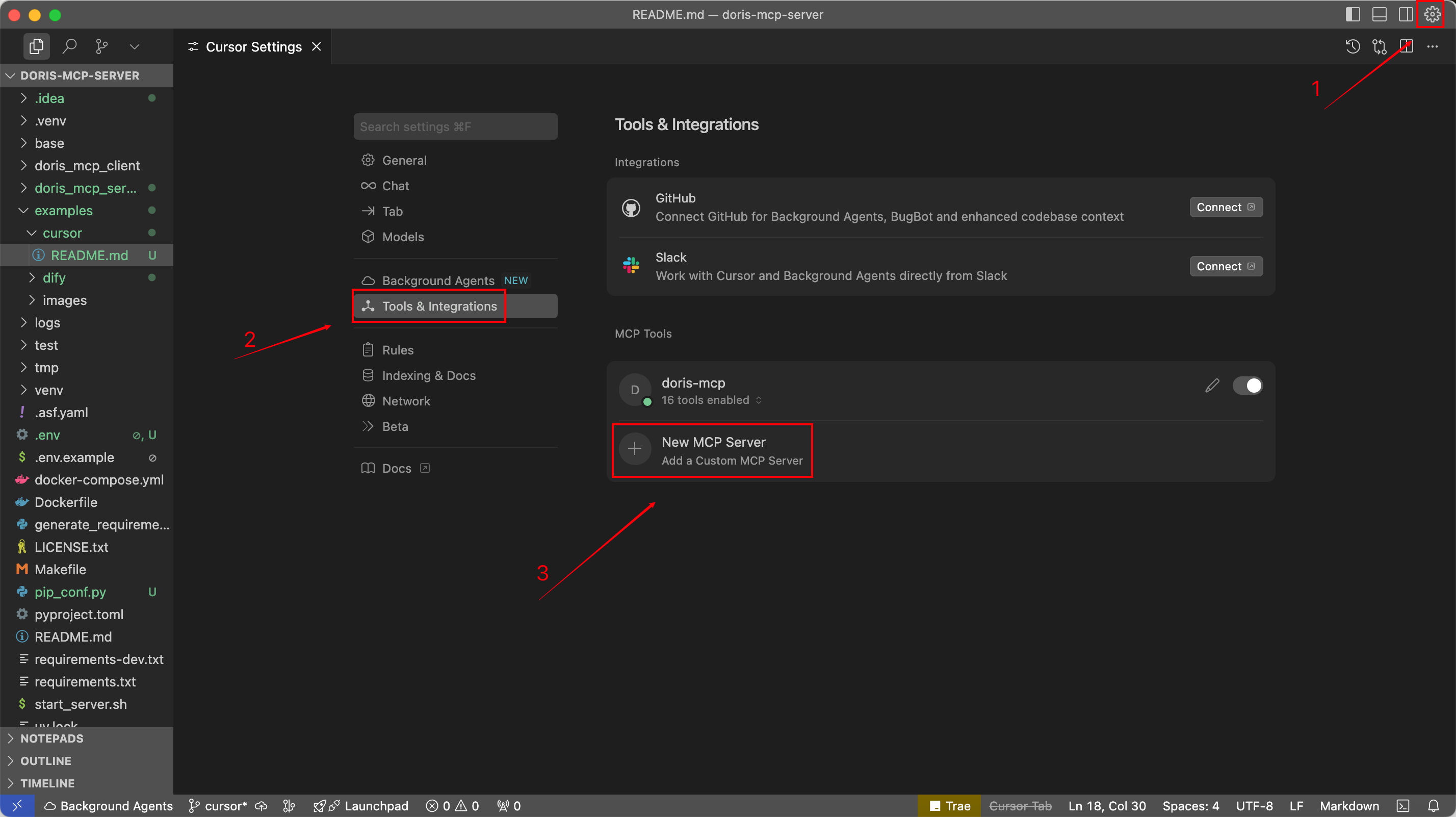
- Click Add a custom MCP Server.
- Paste the following JSON configuration:

{
  "mcpServers": {
    "doris-mcp": {
      "command": "uv",
      "args": [
        "run",
        "--project",
        "/path/to/your/doris-mcp-server",
        "mcp-doris-server"
      ],
      "env": {
        "DB_HOST": "your_doris_fe_host",
        "DB_PORT": "9030",
        "DB_USER": "your_username",
        "DB_PASSWORD": "your_password",
        "DB_DATABASE": "ssb"
      }
    }
  }
}
⚠️ Important:
- Replace
"/path/to/your/doris-mcp-server"with the absolute path to your local project directory.- Fill in your actual Doris FE host, username, password, and database name.
Step 3: Verify the Integration
Once saved, go back to the Settings panel. If everything is configured correctly, you’ll see a green status dot next to doris-mcp-server, along with available tools like exec_query.

Step 4: Query Your Database
You can now chat with Cursor Agent to run SQL queries against your Doris database.
- Open the chat panel using
Cmd + K(macOS) orCtrl + K(Windows/Linux), or click the chat icon in the top-right. - Switch to Agent Mode.
- Start asking questions using natural language.

Example 1: List Tables
Prompt: What tables are in the
ssbdatabase?
The agent will call the get_db_table_list tool and return the results.

Example 2: Analyze Sales Trends
Prompt: What has been the sales trend over the past ten years in the
ssbdatabase, and which year had the fastest growth?
The agent will generate an appropriate SQL query, send it to the MCP server, and interpret the results to give you growth trends and highlights.
